Claude's Install as app turns an artifact Claude made for you into a standalone Mac or Windows app with its own window and icon. Update Claude Desktop to version 6.28899.0 or later, open the artifact's title menu or right-click it, select "Install as app," then "Install." It is in beta on every plan including Free, and requests the app makes to Claude count toward your plan's usage limits.
There are three permission tiers: Default, App permissions, and Full computer access. Calculators and lookup tools can stay on Default. Grant App permissions only when a tool needs notifications, keyboard shortcuts, or to float over other windows. Full computer access lets an app run programs and read, change, or delete your files, and Anthropic only lets you grant it to apps you made. Template artifacts (such as Docs, Slides, Sheets), legacy artifacts, and live artifacts from Claude Cowork can't be installed, and there is no Linux, web, or mobile support.
This page is based on Anthropic's announcement, help center article, and admin guide, as of 2026-11-27. We did not install anything; steps and menu names follow the official text. The feature is in beta and may change.
What Install as app is
The official release notes list "Install artifacts as apps (beta)" on November 24, 2026. Per the help center article Install an artifact as an app:
- The app and the artifact are the same thing. When you or another editor changes the artifact, the app changes too.
- To open an app, you need to be online and signed in to Claude Desktop.
- An app can use Claude and your connectors the same way the artifact does. The announcement adds that there is nothing to package or sign, and no API key or separate login.
- The announcement says "You can share it with others." Neither page says what plan or version the recipient needs.
Pre-install checklist
- Mac or Windows. "Apps aren't available on Linux, web, or mobile."
- Claude Desktop 6.28899.0 or later. On Windows: menu button (☰) > Help > Check for Updates. On macOS: Claude > Check for Updates.
- Your plan has it. Free, Pro, Max, Ultra, Team, and Enterprise are listed, "rolling out in beta," so your account may not have it yet.
- Work accounts depend on admin settings. On Team it is on by default with full access off. On Enterprise the entire feature is off until an owner turns it on, under Organization settings > Artifacts (admin guide).
- The artifact type is installable. Not template artifacts (such as Docs, Slides, or Sheets), legacy artifacts, or live artifacts from Claude Cowork.
- You are online and signed in to Claude Desktop when you open the app.
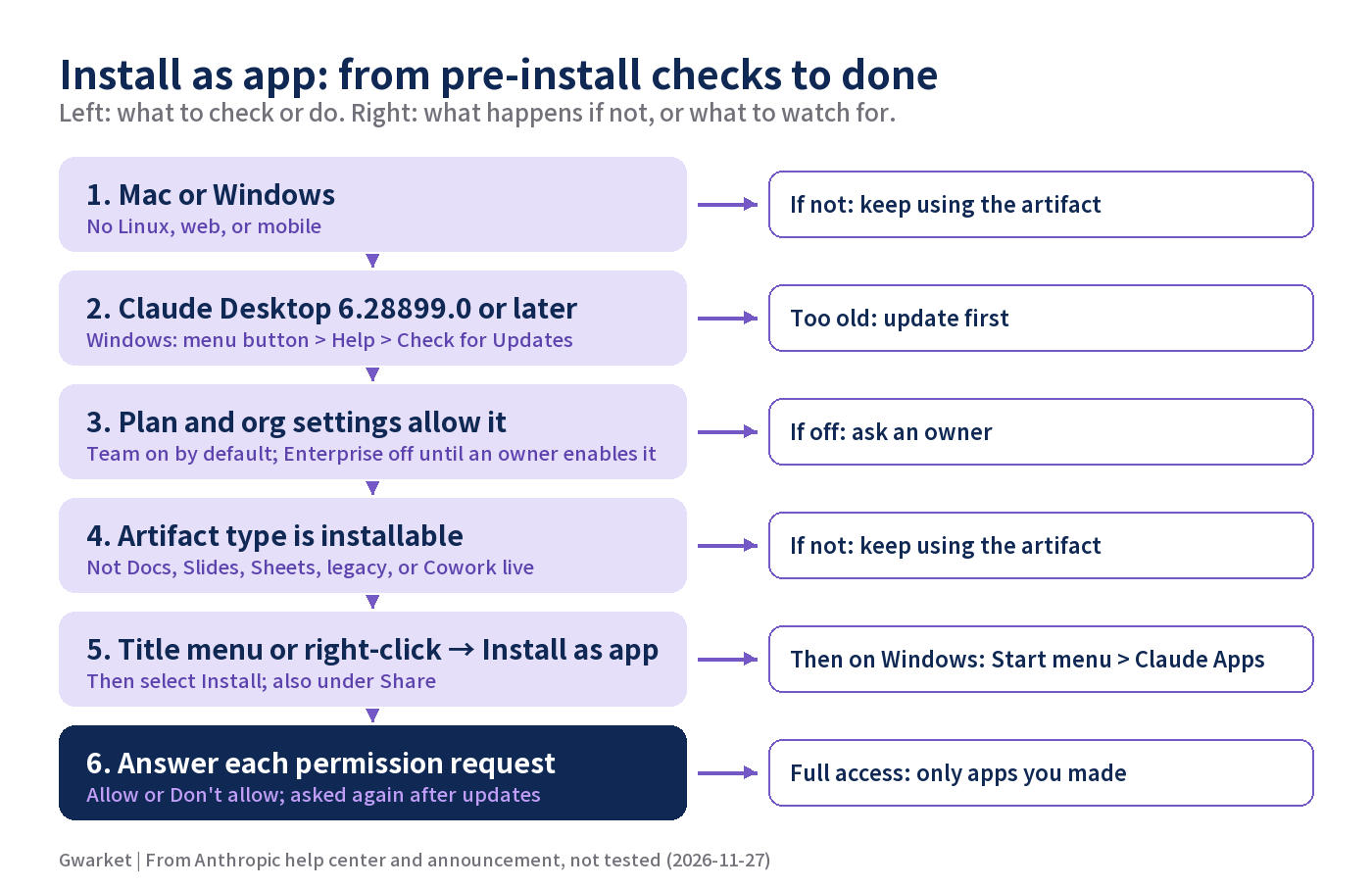
How to install
- Open the artifact in the main Claude Desktop window.
- Open the artifact's title menu, or right-click the artifact.
- Select "Install as app."
- Select "Install" to confirm.
"Install as app" is also under Share.
| Action | Windows | macOS |
|---|---|---|
| Open the app | Start menu (Claude Apps folder) or the desktop shortcut | Claude Apps folder inside Applications in your home folder |
| Find it in Claude Desktop | Menu button (☰) > File > Apps | File > Apps |
| Quit fully (apps with a tray or menu bar item keep running after the window closes) | "Exit" in the tray icon's menu | Quit from the Dock, or press Cmd+Q |
| Change permissions | Right-click the title bar (or Alt+Space), select Permissions | Click the app's name in the menu bar, select Permissions |
| Uninstall | File > Apps, select the app, select Uninstall | Same |
Uninstalling removes the permissions you granted. It does not delete the artifact.
What each permission tier allows
The tier names come from the announcement. The help center lists individual permissions, and you answer each request with "Allow" or "Don't allow." Mapped together:
| Tier | Help center permissions | What the app can do | Team default | Enterprise default |
|---|---|---|---|---|
| Default | None; nothing to approve | Only what it could do in a browser | On | Off |
| App permissions | Notifications, Keyboard shortcuts, Float over other windows, Menu bar item (macOS) or system tray icon (Windows) | Notify you and respond to key combinations while you use other apps; draw above other windows and read where the mouse cursor is; show a menu bar or tray item | On | Off |
| Full computer access (the help center says "Full access to this computer") | Full access to this computer | Run programs and read, change, or delete your files without asking each time | Off | Off |
The four items map to App permissions because the admin guide describes that setting as "Apps can ask for notifications, keyboard shortcuts, a menu bar or system tray item, and floating over other windows." The Team and Enterprise defaults come from the same guide.
Three more things to know:
- “An "Allow" covers one version of the app.” After any update, including your own edits, Claude asks again.
- "If an app loads code from another site, that code can change without a new request."
- On macOS, Claude can see an installed app when it uses your computer, but can't click or type in it.
Which tier to grant: decision table
Anthropic documents what each tier does, not which tools need which tier. This table is our own reading of the official permission descriptions; the tool types are examples, not official categories.
| Your tool | Tier | Permission items | Why | If you grant too much |
|---|---|---|---|---|
| Calculators, converters, lookups | Default | None | A browser can already do this | No benefit, and one more prompt after every update |
| Timers and reminders | App permissions | Notifications; add the tray icon only if it should keep running | It has to reach you while you use other apps | With a tray item the app keeps running after you close the window |
| Quick notes or lookups you call with a shortcut or pin on top | App permissions | Keyboard shortcuts, Float over other windows | These two items exist for this | Float over other windows also lets the app read where the mouse cursor is |
| Tools that read or write local files or run programs (batch rename, folder cleanup) | Full computer access | Full access to this computer | Running programs and reading, changing, or deleting files directly is listed under this tier | The app can run any program and change or delete files without asking each time |
| An app someone shared with you (Free, Pro, Max, Ultra) | App permissions at most | Decide item by item | You can only give full access to apps you made; on these plans anyone other than you is outside your organization | Requests from outside apps, or apps whose author Claude can't tell, show a warning |
| An app a coworker made (Team, Enterprise) | Within what your admin allows, as above | Same | Full access can go to apps made by people in your organization, but it is off by default | Same as the local-files row |
| How to choose | Select Don't allow for everything first, then turn on the one item a feature needs under Permissions | One item at a time | Permissions can be changed later, so starting low costs nothing | Keep Full computer access for apps you made and understand |
Limiting full access to your own apps is an official rule. The announcement says: "You can only give full access to apps you made or, on Team and Enterprise, apps made by people in your organization." The help center adds that Claude generally doesn't allow an app to request full access if someone outside your organization wrote part of it. Full access isn't available in Claude for Teachers or to K-12 organizations.
The same least-access habit applies to other AI tools; for Codex, see Codex Permissions: How to Give Full Access or Limit It to One Folder.
What can't be installed
| Limit | Official wording, summarized | Source |
|---|---|---|
| Template artifacts | Can't be installed; the official examples are Docs, Slides, and Sheets | Help center, announcement |
| Legacy artifacts | Can't be installed | Help center |
| Live artifacts from Claude Cowork | Can't be installed | Help center |
| Linux, web, mobile | Not available | Help center |
| HIPAA-ready organizations | Not available | Help center, announcement |
| Hybrid deployments | Not available | Announcement |
| Claude for Teachers, K-12 organizations | No full access | Help center |
| Zero data retention organizations | Can install after an owner enables the settings, but these apps aren't covered by zero data retention | Help center |
The help center article does not say how to tell whether an artifact is a legacy one.
Free plan and usage
Free is on the list, in beta. The help center says: "Building an app, and any requests an app makes to Claude, count toward your plan's usage limits." Anthropic does not say which model an app's requests use or how much usage one request costs. For plan limits, see our AI subscription comparison; for which models each plan includes, see Claude Opus vs Sonnet.
No pre-install review: our take
Both official pages say Anthropic doesn't review apps before you install them, so only give full access to apps you trust. The permission prompt is the only gate, and you are the one answering it.
- Default is safe to try: Anthropic says these apps can only do what they could do in a browser.
- For someone else's app, stop at the warning and answer the four App permissions items one by one.
- For an app with full access, read every re-approval prompt after an update. An app that loads code from another site is a poor candidate for full access, because that code can change without a new request.
- Leave it as an artifact if you open it rarely, or if the people using it are on mobile or Linux.
- Install it if you open it daily and it needs notifications, a shortcut, or to keep running.
If "Install as app" is missing
The help center gives two fixes: update Claude Desktop, and on Team or Enterprise ask an owner whether it is turned on. The admin guide notes that organizations can also turn the feature off through device policy (MDM). If neither applies, go back through the checklist: web or Linux, a template artifact (such as Docs, Slides, or Sheets) or a legacy artifact, or a beta rollout that hasn't reached your account.
FAQ
Can I use Install as app on the Free plan?
Yes. The help center lists Free alongside Pro, Max, Ultra, Team, and Enterprise, all in beta. Requests the app makes to Claude count toward your usage limits.
Do installed apps work offline?
No. You need to be online and signed in to Claude Desktop to open an app.
Can I give Full computer access to an app someone shared with me?
Not on Free, Pro, Max, or Ultra: full access is limited to apps you made. On Team and Enterprise it can cover apps made by people in your organization, once an admin enables it.
How this page was written
Sources: Anthropic's announcement (2026-11-24), the help center article "Install an artifact as an app," the Artifacts admin guide, and the official release notes, as of 2026-11-27. Version: Claude for Mac or Windows 6.28899.0 or later; beta. Not tested: we did not install or operate the feature. The decision table and "our take" are our reading of the official permission descriptions. Not stated by Anthropic: what a recipient of a shared app needs, which model app requests use, and how to identify a legacy artifact.