ChatGPT Projects is a workspace for related chats, files, and instructions. Use one when a task will run for weeks, produce more than one result, or repeatedly needs the same material. The practice below lets you test that setup with three fictional meeting records—without treating missing facts as facts.
For a one-off question or independent task, start a regular chat instead. OpenAI’s Projects documentation describes Projects as a place to keep work together; Projects and chats explains the difference between a continuing workspace and a single chat.
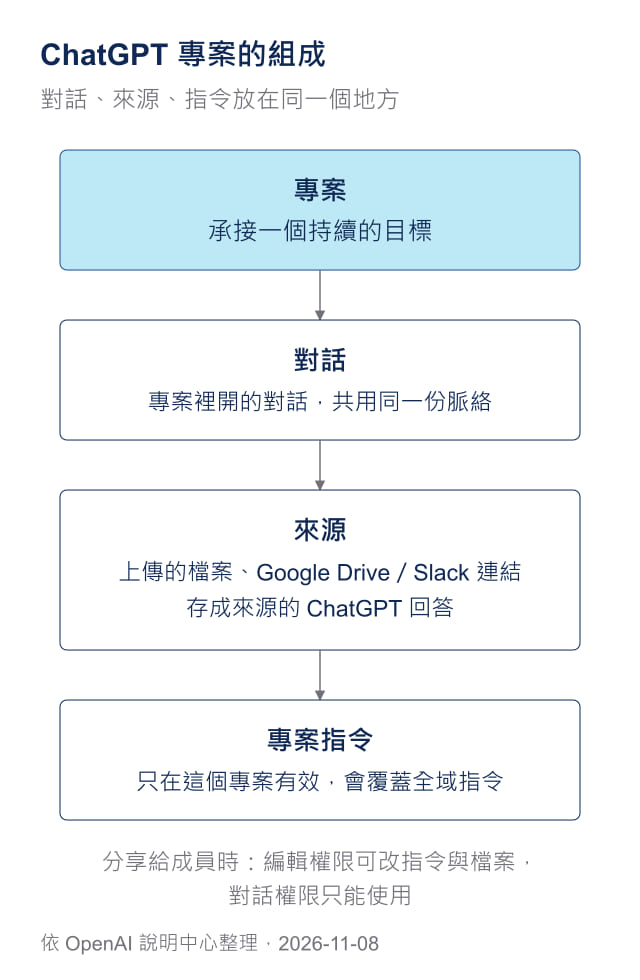
Original diagram: Gwarket / Aaron Huang · CC BY 4.0 ·
Gwarket’s diagram based on the OpenAI Help Center, checked 2026-11-08; original labels remain Chinese.
1. Create a Project
- In the sidebar, select New project.
- Enter a project name, then choose an icon and color.
2. Add sources the Project can use
Projects have chats and sources. You can add:
| Source | How to add it |
|---|---|
| Files | Upload PDFs, spreadsheets, documents, images, or paste text. |
| Cloud files or channels | Under Sources, choose Add source, select Google Drive (files or folders) or Slack (channels), authorize on first use, then paste a link. |
| A ChatGPT response | In a Project chat, open a response menu and choose Add to project sources. This can suit a checked summary, decision record, or draft. |
Keep three boundaries in view:
- When a filename matches an existing file, choose whether to upload it anyway or skip it.
- The Google Drive app in a Project does not pre-sync content; it can still search and access files.
- A ChatGPT Project cannot directly read a folder on your computer. Upload or connect the source. ChatGPT desktop’s Local Projects are a different feature. (Projects and chats)
3. Set Project instructions
Open the ••• menu, choose Project settings, and add instructions for this Project. For example: “Act as my marketing mentor. Keep answers concise and use bullets. Ask a question first when needed.”
Project instructions apply only inside that Project and override global custom instructions.
For the distinction between Project instructions and AGENTS.md, see Project instructions and AGENTS.md.
4. Practice once: turn meeting records into a traceable weekly report
This is a repeatable exercise using fictional teaching materials, not a record of ChatGPT execution. Create a Project named “Weekly Meeting Tracking Practice.” Upload only the three meeting records. Keep the authored reference answer outside the Project until you have completed both tasks yourself.
Downloads: N01 — November 2 meeting (Chinese original) · N02 — November 4 update (Chinese original) · N03 — November 6 follow-up (Chinese original) · ZIP: three records and the authored reference answer (Chinese originals).
Upload the three records, then add reusable instructions
Under Sources, upload N01, N02, and N03. Do not upload the authored reference answer (Chinese original): it is for human comparison at the end, not an answer ChatGPT should see first.
Add these Project instructions:
You are a project assistant. When reporting work status, list Completed, Open Decisions, Owner for Next Step, Due Date, and Source for every item. Use only sources already supplied in this Project. When a name, due date, or conclusion is absent, explicitly write “To be confirmed”; do not invent it. Name the source file for every item.
First task: make a one-page weekly report from the records only
Open a new chat inside the Project and paste:
Based only on N01, N02, and N03, make a one-page weekly report. Use a table with Completed This Week, Open Decisions, Owner for Next Week, Due Date, and Source. Separate a submitted draft, proofread subtitles, and an approved result. Mark any status, date, or owner missing from the sources as “To be confirmed.”
A useful result does not turn “FAQ draft submitted” into “FAQ finalized,” or “subtitles proofread” into “video approved.” The website launch date and publishing owner should still be “To be confirmed.” Those gaps are deliberate teaching evidence, not blanks for a model to guess.
Second task: open a separate chat for the follow-up list
Stay in the same Project, but open a second new chat and paste:
Based only on N01, N02, and N03, list the questions that need follow-up. For each question, say what information is missing, which work item it affects, and which source supports the question. Do not decide the answer or add a due date.
This checks whether the Project brings the same supplied sources and instructions into a new chat. It must not depend on a weekly report from the first chat unless you have explicitly saved that report as a source. Questions such as “What is the deadline for the refund-condition addition?” or “Who owns website publishing?” are reasonable. A made-up date or name is not.
Compare, correct, and only then save a useful result as a source
After both tasks, open the authored teaching reference answer (Chinese original). It is a comparison baseline, not a ChatGPT output or a real Project result. Check three things: every row names a source; progress is not inflated into completion; and missing information remains “To be confirmed.”
Correct the weekly report, then use Add to project sources to save the version you accept. It can become context for later tracking, but the original records remain the evidence to revisit.
5. Move an existing chat into a Project
Drag a chat onto the Project, or open its menu and choose Move to project. A moved chat begins using that Project’s instructions and files.
- Chats created with GPTs cannot be moved into a Project.
- If Move to project is unavailable, the chat is not eligible; start a new chat in the Project instead.
- To move it back out, use the chat’s ••• menu and choose Remove from project.
If an attachment did not appear under Sources after a move, see why attachments may be missing from Project Sources.
6. Project memory
A Project can use its chats and files as context for later replies. In a shared Project, memory is limited to that Project and does not use memory outside it. See “Memory in projects” in the official documentation for the detailed rules.
7. Share a Project carefully
Choose Share to invite people, groups, or share a link. Invitees have two permission levels:
| Permission | What it allows |
|---|---|
| Edit | Change instructions, upload or delete files, and invite others (but not remove existing members). |
| Chat | View and use the Project’s chats, files, and instructions, but cannot invite others. |
Owners manage all members and permissions, rename or delete the Project. A link can be limited to invited people or shared with anyone who has the link; the recipient must sign in to ChatGPT. Deleting a file from a shared Project removes it for everyone, although it can be added again later.
8. Plan limits
| Plan | Files per Project | Collaborators |
|---|---|---|
| Free | 5 | 5 |
| Go, Plus | 25 | 10 |
| Pro | 40 | 100 |
| Business, Enterprise, Edu | 40 | 100 (workspace Projects) |
Source: “Collaboration limits” in OpenAI Help: Projects in ChatGPT, checked 2026-11-08. Limits remain subject to plan, workspace settings, and the current official page.
9. Common questions
A Project is missing
Check whether you are in another account or workspace: personal and company-workspace Projects are separate. A shared Project deleted by its owner is no longer visible unless you copied its chats and files before leaving. If the chat is archived, restore it from Settings → Archived chats.
A shared Project will not open
A shared link requires a ChatGPT sign-in. When the owner has set the Project to invited people only, someone who was not invited cannot open it; ask the owner to check sharing settings.
Which tools are available inside Projects?
The available tools are broadly the same as outside Projects: Canvas, image generation, voice, web search, and more. Paid plans may offer agent mode or deep research. Study mode does not apply to Project chats.
Can I share just one chat from a Project?
In a personal Project, you can share an individual chat. The recipient sees that chat, not the Project’s other chats, files, or instructions.
Sources and verification date
Checked 2026-11-08.
- OpenAI Help Center: Projects in ChatGPT: creating Projects, sources, Project instructions, moving chats, memory, sharing, and plan limits.
- OpenAI Learn: Projects and chats: when to create a Project and the distinction between Local Projects and ChatGPT Projects.