Where Is Python Actually Running? Understanding Anaconda, Jupyter, Terminal, and Environments
You may have seen situations like these:
Python is installed, but your Terminal says it cannot find python.
A package imports correctly in Jupyter Notebook, but the same code fails when you run it from PowerShell.
Or the file is visibly on your computer, yet Python reports:
No such file or directory
It is easy to interpret all of these as:
“Maybe Python was installed incorrectly.”
But the underlying problem is often different:
Which interface are you using, which Python is actually executing the code, which environment does it belong to, which packages can it see, and what directory is it currently working from?
Python, Anaconda, conda, Jupyter, kernels, Terminal, and PowerShell can all appear in the same workflow, but they do not play the same role.
Start with one execution map
Do not begin by memorizing tool names.
A Python execution can be understood as a path:
You
↓
Interface
Terminal / Jupyter
↓
Command or notebook layer
PowerShell / Cell
↓
Actual executor
Python interpreter / Jupyter kernel
↓
Current environment
environment + packages
↓
Current location
working directory + files
↓
Output
The important question is not which window looks like “Python.”
It is:
Which Python process ultimately receives and runs your code?
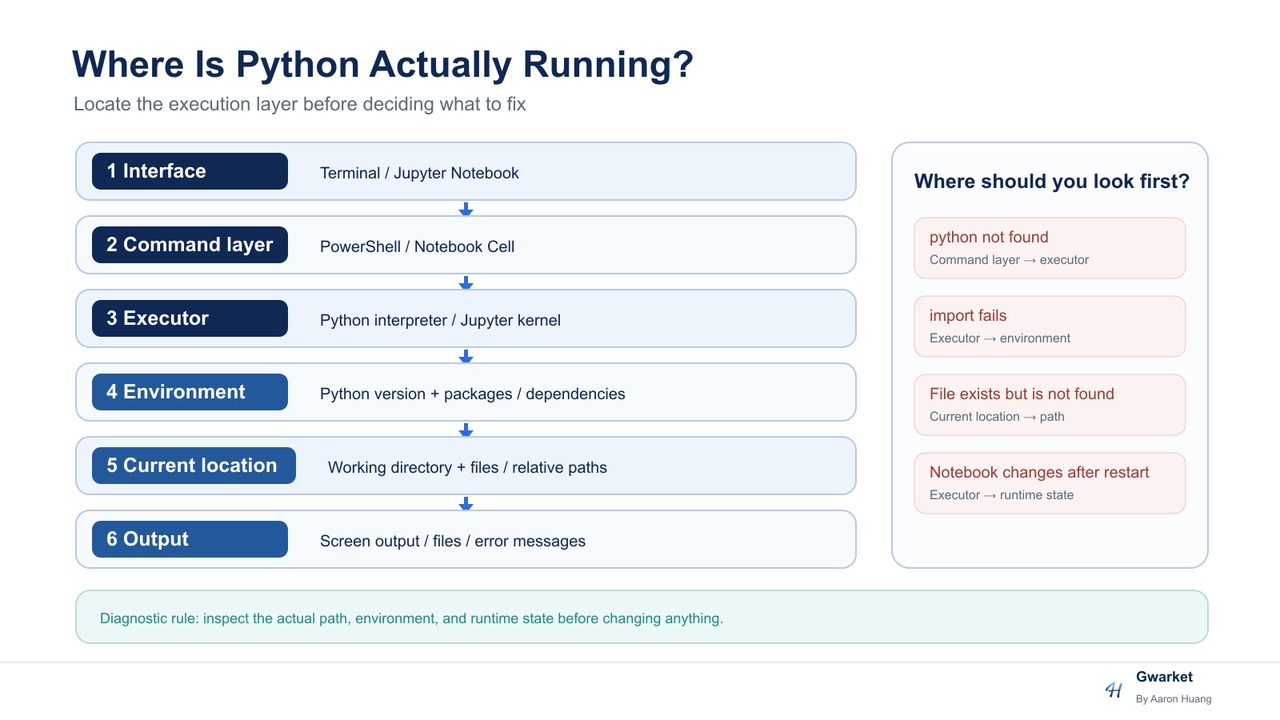
What do Python, Anaconda, Jupyter, and Terminal each do?
The names become easier to understand when you separate their roles.
| Name | A useful first mental model | Does it directly execute Python code? |
|---|---|---|
| Python | The language and the interpreter that runs Python code | The interpreter does |
| Anaconda | A Python distribution and environment/tool bundle | Not by itself |
| conda | An environment and package management tool | Mainly manages environments/packages |
| Terminal | An interface for entering command-line instructions | No |
| PowerShell | A shell that interprets commands and launches programs | It launches other programs |
| Jupyter Notebook | An interactive interface for writing code and viewing results | Through a kernel |
| kernel | The process behind a notebook that actually executes code | Yes |
The key distinction is:
The interface is not necessarily the executor.
You can write Python inside Jupyter, but the connected kernel executes the cell.
You can type:
python
inside a Terminal, but the Terminal does not become Python. The shell locates and launches a Python interpreter.
That is why two windows on the same computer do not automatically mean they are using the same Python installation.
First experiment: which Python is actually running?
When environment problems appear, build one habit:
Do not guess. Inspect the path.
Inside Jupyter Notebook, run:
import sys

print(sys.version)
print(sys.executable)
sys.version shows the current Python version.
More importantly:
sys.executable
shows the executable path of the Python interpreter currently running the code.
You may see something similar to:
C:\Users\...\anaconda3\envs\class\python.exe
That path is stronger evidence than saying:
“I think I am using Anaconda.”
If you then start Python from PowerShell and inspect its executable path, the two locations may be the same or different.
The point is not to force a difference.
The point is to learn what you are actually verifying:
The executor, not the product name you expect to be using.
Why can a package be installed but still fail to import?
Consider a computer with two environments:
Python A
└── Environment A
    └── package X

Python B
└── Environment B
    └── package X is not installed
You installed package X into Environment A.
Now Python B runs:
import package_x
The import may fail.
So the statement:
“I already installed that package.”
is incomplete.
The missing question is:
Installed for which Python environment?
Different projects may require different Python or package versions, which is one reason environments are isolated.
When you see:
ModuleNotFoundError
do not make reinstalling everything your first response.
First ask:
Which Python is running?
Then ask:
Does this environment actually contain the package I need?
Where do conda and pip fit?
You may see commands such as:
conda install ...
or:
pip install ...
or:
python -m pip ...
Article 01 does not need to decide which tool is universally “better.”
The more important principle is:
When installing a package, know which Python/environment you are installing it for.
One reason python -m pip is useful is that the selected python executable runs the pip module associated with that interpreter.
conda also manages environments and packages.
You do not need to master every environment manager yet.
The stop line here is simpler:
“Installed somewhere on my computer” is not the same as “available to the Python that is running now.”
Second common problem: the file exists, so why can Python not find it?
This may no longer be an environment problem.
It may be a:
working-directory problem.
Imagine this folder structure:
learning/
├── data/
│   └── notes.json
└── app.py
Your code contains:
open("data/notes.json")
The path:
data/notes.json
is relative.
It does not mean:
“Search the entire computer for notes.json.”
It means:
“Starting from the current working directory, look for data/notes.json.”
So the exact same code can behave differently when launched from different directories:
Run from directory A → works
Run from directory B → file not found
If you see:
FileNotFoundError
do not immediately conclude that the file disappeared.
First ask:
From which directory is the program trying to resolve this path?
Terminal and PowerShell are not the same layer
The Terminal is the interface where you interact with command-line programs.
PowerShell is a shell.
A shell interprets commands such as:
cd
python
conda
and determines which programs should be launched.
So Terminal and PowerShell are related, but they are not the same thing.
Likewise, if you type:
python
and the prompt changes to:
>>>
you have moved from the shell into Python's interactive interpreter.
At that point, a shell command such as:
cd
and Python code such as:
print("hello")
belong to different execution layers.
For a beginner, knowing which layer you are currently in is often more valuable than memorizing another ten commands.
Jupyter adds another source of confusion: runtime state
A normal .py file encourages a simple mental model:
line 1
↓
line 2
↓
line 3
Notebook cells do not have to run in top-to-bottom order.
Suppose Cell 1 contains:
score = 10
and Cell 2 contains:
print(score * 2)
Run Cell 1 and then Cell 2, and you get:
20
Now restart the kernel and run Cell 2 first.
You may get:
NameError
because the new kernel has never created score.
That leads to an important rule:
A result that remains visible in a notebook does not prove that the current runtime state can reproduce it.
Seeing:
20
only proves that 20 was produced at some earlier point.
It does not automatically prove that a clean execution can produce the same result now.
A useful reproducibility check is:
Restart kernel
↓
Run from the beginning
↓
Confirm the same result can be reproduced
Put common failures back into the correct layer
The earlier symptoms now become easier to classify.
| Symptom | First place to inspect |
|---|---|
python is not found |
Whether the shell can locate a Python executable |
A package was installed but import fails |
Which Python/environment is running |
| A file exists but cannot be found | Working directory and actual path |
| A notebook worked before restart but fails now | Kernel state and cell execution order |
These are not the same failure.
Using “reinstall Python” as the answer to all four can make the environment more confusing rather than less.
A more reliable sequence is:
Observe
↓
Identify the execution layer
↓
Collect evidence
↓
Change only what the evidence supports
What do you actually need to know at this point?
Article 01 does not require you to memorize a long list of Terminal commands or master conda, pip, and every environment manager.
You only need to be able to answer:
Which interface am I using?
Which Python interpreter or kernel is actually executing the code?
Which environment does it belong to?
Which packages can that environment see?
What is the current working directory?
Can the notebook result be reproduced from a clean kernel?
Once you can answer with actual paths, environments, and runtime state—instead of only saying “I think it is installed”—the goal of this article is met.
Article 02 will move inside the Python program itself:
How do variables, types, lists, dictionaries, conditions, loops, and functions transform input data into a result?