How to Create a Gemini Skill or Import SKILL.md
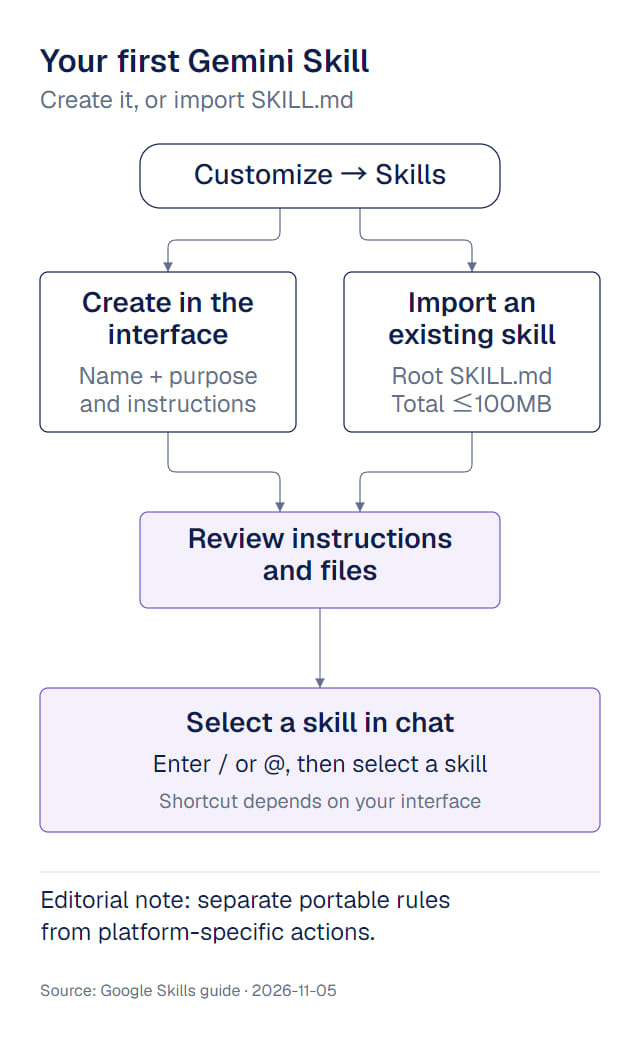
Open Customize → Skills in the Gemini sidebar and choose Create: you can write a skill's name, description and instructions by hand, or upload a folder or ZIP with SKILL.md at its root. Once it exists, type / or @ in a chat to select it, or let Gemini apply it when relevant. For a first skill, pick one small, repeatable task, such as turning project notes into a weekly update. Google's creation guide
Check the requirements and choose an entry point
Google lists age 18 or over, a signed-in Gemini account, and Keep Activity enabled as requirements. Skills can be used in chats without a Google AI subscription; access to Tasks and schedules depends on your plan. This guide covers Gemini Apps on a computer; Gemini CLI's feature of the same name is a separate product. Requirements and subscription distinction
The instructions focus on eligible personal accounts. Work and school availability follows Google's separate rollout, so if you can't find the entry point, check your account type first. Account availability
Open Customize → Skills in the sidebar, expanding More if necessary. Choose Create → Create manually, add a name, description and instructions, then create the skill. Official creation steps
Give the first skill one clear job
Google recommends focused instructions, a specific purpose and an explicit response to missing information. Official writing guidance
Here is a project-update example:
| Field | Example |
|---|---|
| Name | draft-project-update |
| Description | Organizes supplied project notes into an update. Use when reporting progress, blockers and next steps. |
| Instructions | Use only the supplied notes. Organize the result under Completed, Blockers and Next steps. Preserve numbers and dates. Flag missing owners or deadlines for confirmation rather than filling them in. |
This separates organization from commitment. Gemini arranges the material; you confirm any owner or deadline. A small, stable job also makes it easier to see which instructions are worth keeping than a skill that tries to research, write and send messages at once.
For a one-off task or a process that changes constantly, stay with an ordinary chat first. Google's own guidance lists those among the cases where a skill may not be worthwhile. When to skip a skill
Select the skill in chat
Type / in a chat, or @ if you have the updated shortcut, then pick the skill you created from the list. Gemini can also use activated skills automatically when they fit the task. Using skills
Import an existing SKILL.md
Choose Create → Upload on the Skills page. Supply SKILL.md directly or a folder or ZIP containing it at the root, then review the result before creating it. The skill name inside SKILL.md uses lowercase letters and hyphens; the file itself is named SKILL.md. Uploaded files have a combined 100MB limit. Upload requirements
Clean up the files before you upload
Google's upload requirements centre on plain-text files: if you can open a file in a basic text editor and read it, it is likely supported. The official list also includes .docx, .pdf, .xlsx, .pptx and common image formats. These are not supported: Supported file types
- Legacy Office formats: .doc, .xls, .ppt
- Audio, video, and archive files
- Some code and config formats, such as .ts, .tsx, .jsx, .php, .rb, .swift and .sql
Before uploading, remove hidden binary files such as .DS_Store and .pyc. Google warns that they can cause the upload to fail. Security restrictions and upload tip
For a first attempt, create a skill in the interface and use Download to get Google's exported ZIP, then organize your files to match that structure instead of guessing a format. That ZIP is an import container; the reference files inside a skill still have to be supported types. Download and upload documentation
Review instructions from another platform
When a skill comes from another platform, recheck its tool names, paths and permission assumptions one by one. Keep portable work rules as they are, and find Google's equivalent for any platform-specific action. Google also states that scripts requiring internet access are not supported and that scripts can't perform actions or requests on external websites. Support and security limits
Next steps
- Separate prompts, skills, tools and subagents before deciding what belongs in a skill.
- To write a
SKILL.mdfrom scratch, use the structure from Anthropic Skill Creator, then adjust it to the Gemini limits above. - Test whether a skill or workflow is reliable before you depend on it.
Sources and verification date
Verified November 6, 2026. Scope: Gemini Apps; no CLI version is implied.
- Google: Create and manage skills: requirements, creation, importing, downloading, supported file types and security restrictions; living Help documentation.
- Google: Write effective skills: naming, task scope and missing information.
- Google: Gems-to-Skills transition: product context and account-specific migration dates for existing Gem users.